Bring it in.
Import original footage from Photos or Files on iPad. Add individual clips, batches or watched folders on Mac.
 RotorGradeMac + iPad
ONE VIDEO. A CLEAR FINISH.
Smooth the motion. Find your color. Get your video ready to share—all in one focused workflow.
Made for Mac and iPad · Development preview
 STABILIZE / COLOR / EXPORT
MEET YOUR NEW WORKSPACE
Explore the five modules below.
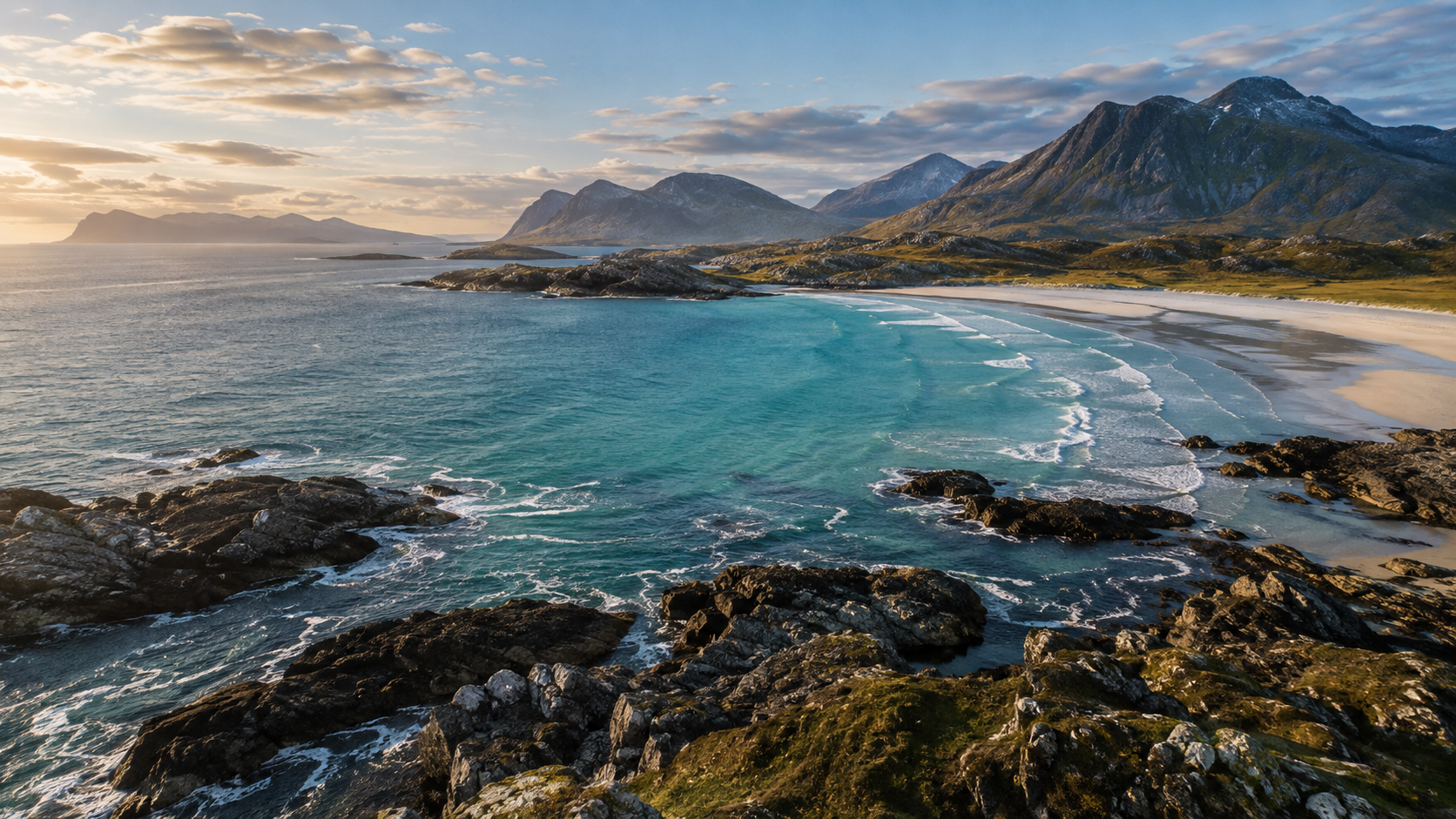
A sample scene shows the layout in action.
 SOURCE LOOK
Illustrative scene and color simulation. This website does not process or upload your video.
A SIMPLER PATH THROUGH POST
Keep the creative decisions together, from the first original file to the final export.
Import original footage from Photos or Files on iPad. Add individual clips, batches or watched folders on Mac.
Apply Gyroflow stabilization inside the app. Supported DJI O4 / Avata originals can use automatic setup, with manual adjustment when you want it.
Load a .cube LUT for your camera and recording profile. Keep your established color workflow close at hand.
Adjust tone and individual colors. Import and export Lightroom XMP presets, with supported global controls approximated for video.
Choose a social export preset, fit or fill the frame, set playback speed, mute audio and limit the final file size.
LESS HANDOFF. MORE CONTROL.
Get the format right without sending your clip through a chain of separate video exports.
A green stabilization check appears after the completed export reports stabilization applied to every output frame. Setup alone never earns that badge.
Presets for YouTube, Instagram, TikTok and Facebook help prepare the output. Set a size ceiling with a slider or an exact value; the finished file is checked before saving.
Stabilization and color share the rendering pipeline, with no separate stabilized movie in between. Import and export still need temporary storage; a tight size limit may require another encoding attempt.
A FEW USEFUL DETAILS
Not for supported originals. Automatic stabilization uses the integrated Gyroflow engine. For DJI O4 / Avata footage, record with RockSteady/EIS off and Wide FOV, and keep the original camera file with its motion metadata. You can open the in-app setup window for manual adjustments.
No. RotorGrade imports and exports XMP, and approximates supported exposure, tone, saturation, vibrance and individual-color controls for SDR video. Adobe profiles, masks and other unsupported settings are not rendered. Unapplied imported settings are preserved when you export the XMP.
You can keep or mute source audio at normal speed. Changing playback speed currently produces a silent video. Slow motion uses captured frames; it does not invent new frames.
The export is checked against your limit, but smaller files need more compression. A limit that is too small can fail or require a lower-resolution preset. Optional Mac proxy files are separate from the main video's size limit.
On iPad, save the completed export to Photos or share it to Files. On Mac, choose an output folder or save alongside the original. Social presets prepare files; they do not publish to your social accounts.
RotorGrade is in development for Apple silicon Macs and iPad. Public downloads and App Store availability have not launched. Release information will appear here when distribution is ready.
ROTORGRADE / DEVELOPMENT PREVIEW
One place to stabilize, shape color and prepare your next export.